Checkout
When the cart is ready, press Checkout (the button shows the order total) to open the tender pane. You take payment there, and the sale completes when the order is paid in full and the receipt is shown.
The Tender Pane
The tender pane holds everything you need to take payment for the order:
- To pay — the balance still due on the order.
- Keypad — enter what the customer hands over. For cash, the change is shown as you type.
- Payment method tiles — the payment methods your store offers at the till, in the order set in Checkout Settings. A tile that can't be used right now (for example, one that needs a connection while you're offline) is listed separately with the reason.
- Split — divides the order into several payments. See Split Payments.
- Payments tab — the payment method tiles and the payments taken so far, with how much of the total is paid.
- Legacy tab (WCPOS Pro) — gateways that still run on their own payment page. See Legacy Tab.
Cart takes you back to the cart without completing the sale. The order stays open.
Payment Methods
Every WCPOS store has two payment methods at the till:
- Cash — enter the amount handed over; WCPOS shows the change due. Cash (and, with Pro, WooCommerce's cash on delivery) is the only method that gives change.
- Card — for a card terminal that isn't connected to the POS. Take the payment on the terminal first, then record it at the till. A card payment can't be more than the balance due.
With WCPOS Pro you can enable any other WooCommerce gateway for the POS:
- Recorded at the till — WooCommerce's cash on delivery, bank transfer and cheque gateways work like Card: the cashier records the payment and nothing has to be confirmed by a server. The order takes the status set for that gateway in Checkout Settings, which is On hold by default for bank transfer and cheque because the money arrives later.
- Card readers — terminal gateways driven from the tender pane. See Card Readers.
- Pay-later gateways — for example, Email Invoice sends an invoice instead of taking money at the till. The order leaves the till as sent, not paid.
See Payment Methods for setting up gateways.
Taking a Payment
- Press Checkout in the cart.
- The first available payment method is already selected; tap another to change it. Its amount starts at the remaining balance.
- For cash, enter the amount handed over and give the change shown. For a payment you take for less than the balance, type the lower amount.
- Press the button that names the amount: Take for a payment you record, Send for a card reader. When the balance reaches zero, the sale completes and the receipt is shown.
With register sessions switched on, open the register before you charge the customer: the till won't record a payment while the register is closed, and a card already taken on an external terminal would have to be refunded. See Stores, Registers and Devices.
Cash change is shown in the currency of the order being sold, not your site's default currency — so a sale rung up in a store that trades in a different currency displays the right symbol and amount.
Split Payments
An order can be paid with more than one payment. Take part in cash and the rest on a card, or tap a payment method and type less than the balance; the next tile starts at what's left. The running balance stays on screen until the order is paid.
Split offers four ways to divide the remaining balance:
- Even — the same amount for each payment, each on any method.
- Amount or Percent — the first payment is this much or this share, and the rest is one more payment.
- Item — tick the items this customer is paying for, then pick the next items for the next payment.
WooCommerce still sees one order. A partly paid order is kept on the till with the amount due until the rest is paid.
Card Readers
Card readers at the till require WCPOS Pro.
A card reader connected to the POS is driven from the tender pane: tap its tile, and the till sends the amount to the reader, shows each step (sent, on the terminal, approved), and lets you cancel on the terminal. The till remembers which reader it uses for each gateway.
Supported readers include Stripe Terminal (smart readers, Bluetooth readers, and Tap to Pay on a phone or tablet) and SumUp. A terminal gateway that hasn't been built for the tender pane appears on the Legacy tab instead. See Payment Gateways for each provider.
Tips
A tip the customer adds on a card reader (WCPOS Pro) is recorded on the order as a Tip line, so it counts in the order total and in reports like any other fee.
Discounts and Coupons
Apply discounts in the cart before you press Checkout:
- Add Discount takes an amount or a percentage off the order and records it as a discount. See Cart Discounts.
- Coupons — type a WooCommerce coupon code in the cart. See Applying Coupons at the Till.
Slow or Lost Connections
A sale paid with cash or another payment recorded at the till (card on an external terminal, cash on delivery, bank transfer or cheque) completes even when the store can't be reached. The receipt keeps the real time and register, and the order syncs when the connection returns. Card readers and online gateways need the store to be reachable; their tiles show Needs a connection while you're offline. See Offline Mode.
When the store is slow to answer, the till holds the sale and tells you, instead of failing it. Retrying a payment the store already has doesn't take it again.
Cancelling a Payment
Cancel payment undoes the payments taken so far on this order. The till lists any money that has to go back to the customer, such as cash to return or a card payment to void, before you confirm with Cancel and void. Cancelling needs the store to be reachable; offline, nothing is cancelled and the till says so. The order stays open, and the cancelled payments stay on its record as voided. A payment on a completed sale is undone with a refund instead.
Legacy Tab
Gateways other than Cash and Card, including everything on the Legacy tab, require WCPOS Pro.
The Legacy tab opens a gateway's own WooCommerce payment page inside the POS, so gateways that haven't been built for the tender pane keep working. A legacy gateway charges the whole order, so it can't be used once a payment has been taken.
Checkout Settings (Troubleshooting)
Theme and plugin scripts can interfere with a gateway's payment page on the Legacy tab. The Checkout Settings button on that page lets you remove styles and scripts from it. Saving changes needs the manage_woocommerce capability.
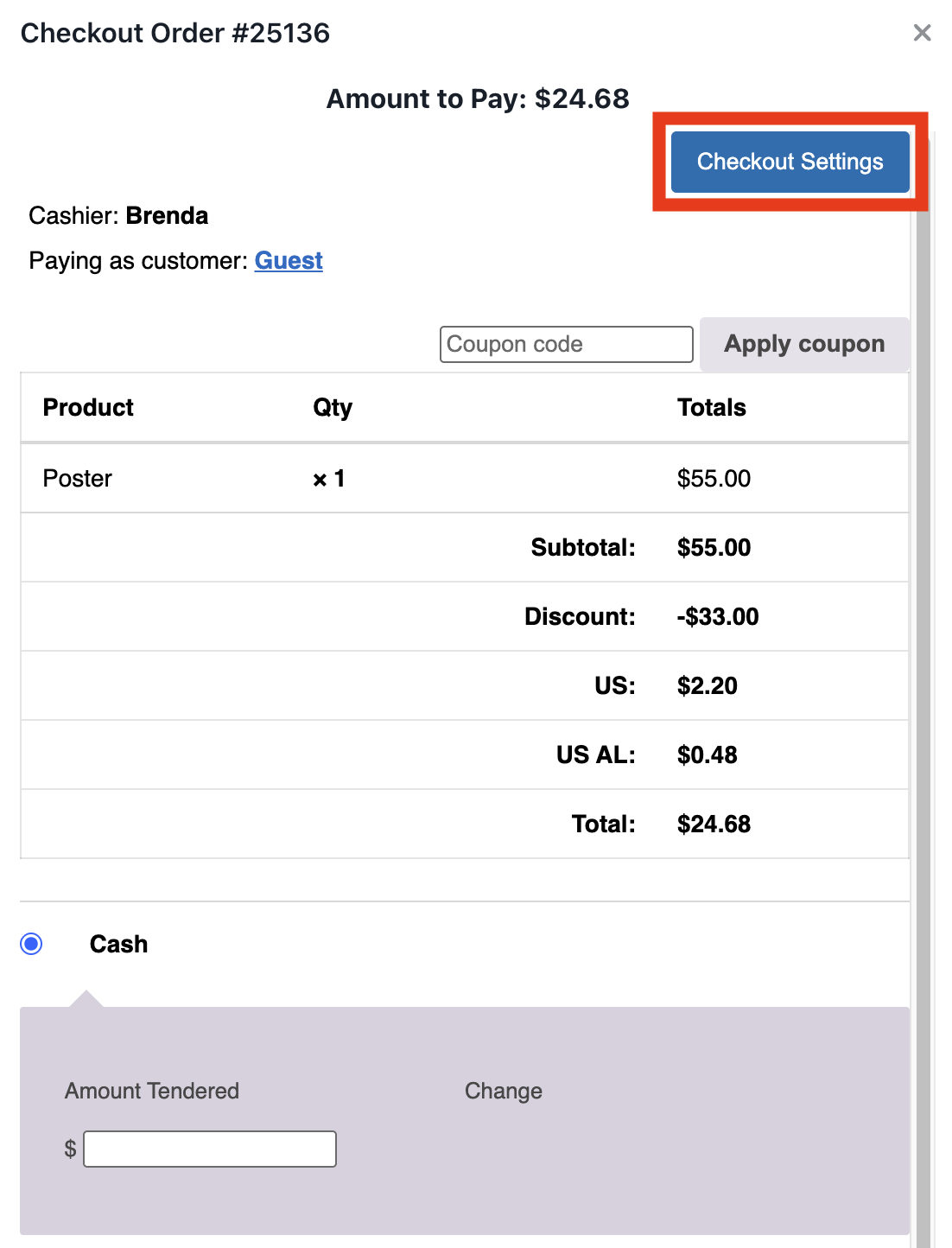
Checkout Settings on the Legacy tab payment page
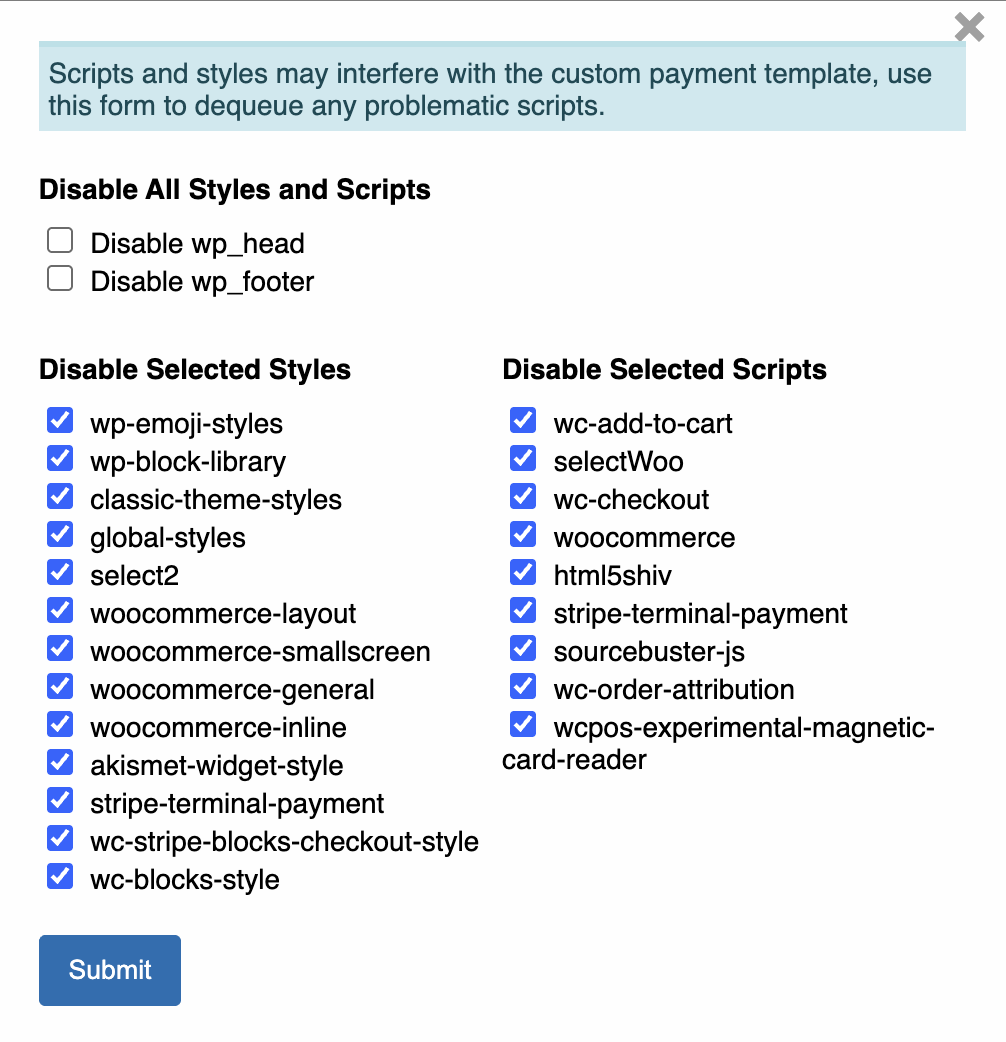
Form to disable all styles and scripts
- Disable wp_head / Disable wp_footer — removes every script and style from the page header or footer. This also removes WooCommerce scripts the payment form needs, so use it only for testing.
- Disable selected styles — for example
wp-block-libraryorwoocommerce-general, when the page displays incorrectly. - Disable selected scripts — for example
wc-add-to-cartorselectWoo, when a script interferes with the gateway. Some entries are marked always removed on the POS payment page; WCPOS removes those whatever you choose.
If a gateway doesn't display correctly, disable theme styles first, then WooCommerce scripts the gateway doesn't need. Don't disable scripts your payment gateway requires.